 taperat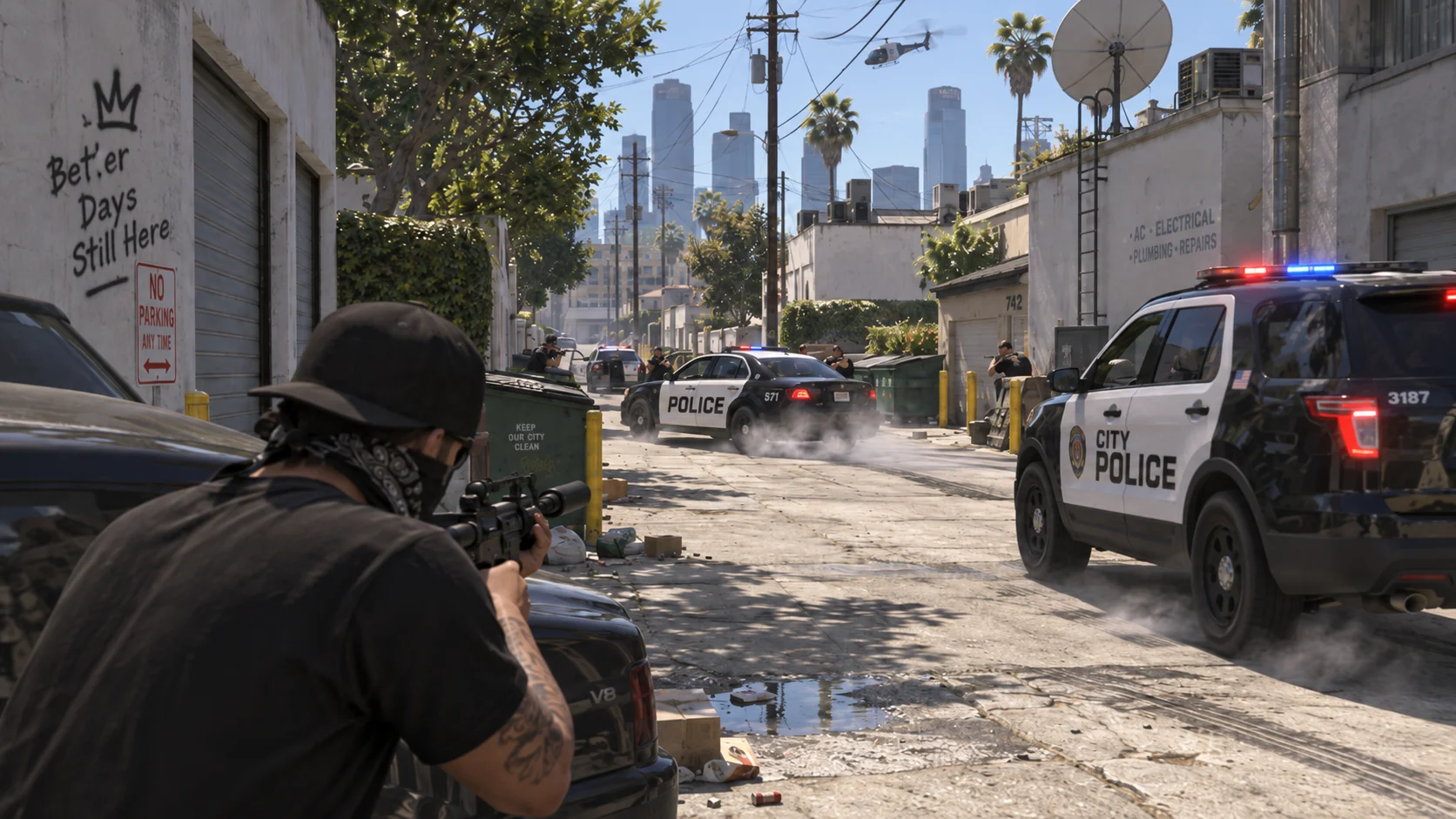
Shootout
Smash'n'lie0:02.93
CombatYour recordings, sessions and saved moments in one reusable library. Find what you need and send it to Resolve Studio or Premiere Pro.
Find dialogue, save moments, and reuse them across projects.Illustrative session · Your original files stay untouched.
Bring compatible recordings from any folder into one continuous timeline. Mark moments across files and keep those slices ready for every project.
Use frame stepping and exact in/out points. Send slices to a new timeline or insert them at the playhead. Premiere Pro 26.3 or newer is supported. In Resolve Studio, open a project and set External scripting using to Local in Preferences → System → General.
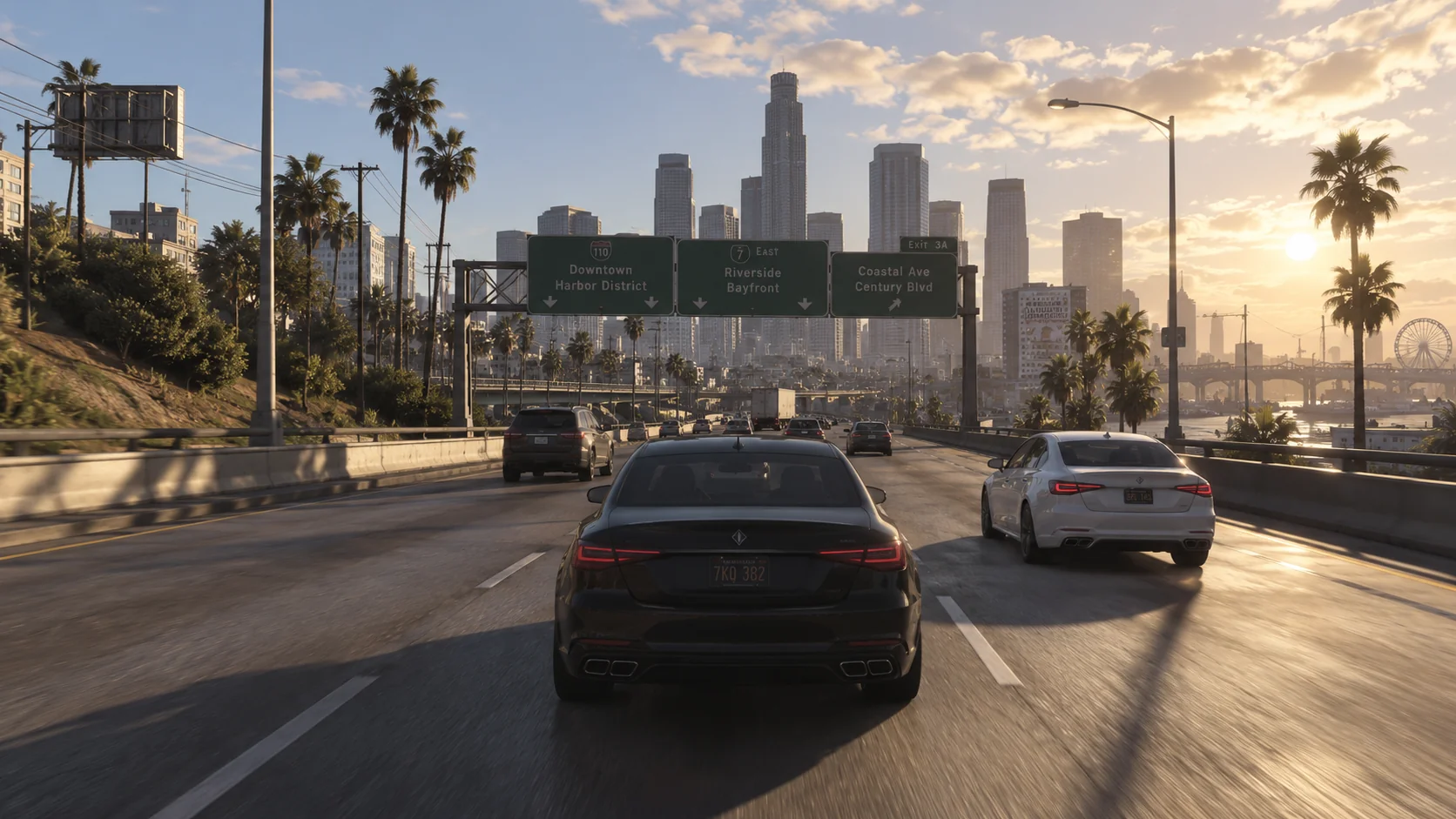
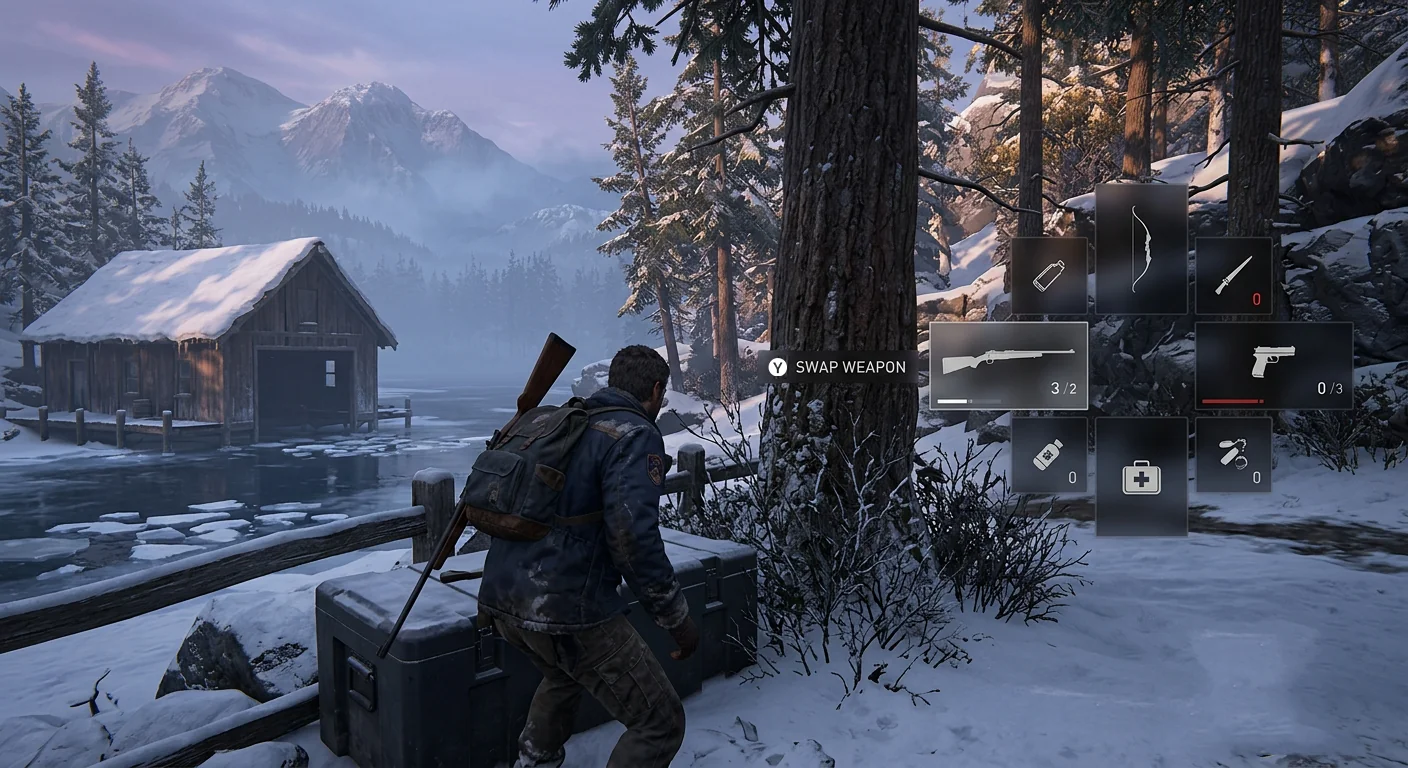
 IN 0:09:14.300OUT 0:09:20.766
Search what was said and jump to the right moment. Transcription gets you started. taperat Perception Engine improves the transcript automatically.
Corrected using on-screen subtitles.
Diarisation separates voices. OCR supplies character names from subtitles.
Transcription gets you started. taperat Perception Engine is our own system that uses diarisation and OCR to improve your transcript—fixing typos and assigning speakers automatically. All on your computer.
OCR can use character names and dialogue from subtitles. Analysis jobs do not run concurrently.
Find a character, a story beat, or that funny moment. Connect your chosen compatible LLM through MCP Bridge, then create slices and tag recordings.
Transcription and Perception Engine run locally. MCP Bridge runs tools on your computer; if you connect a cloud LLM, its provider handles the data you choose to share.
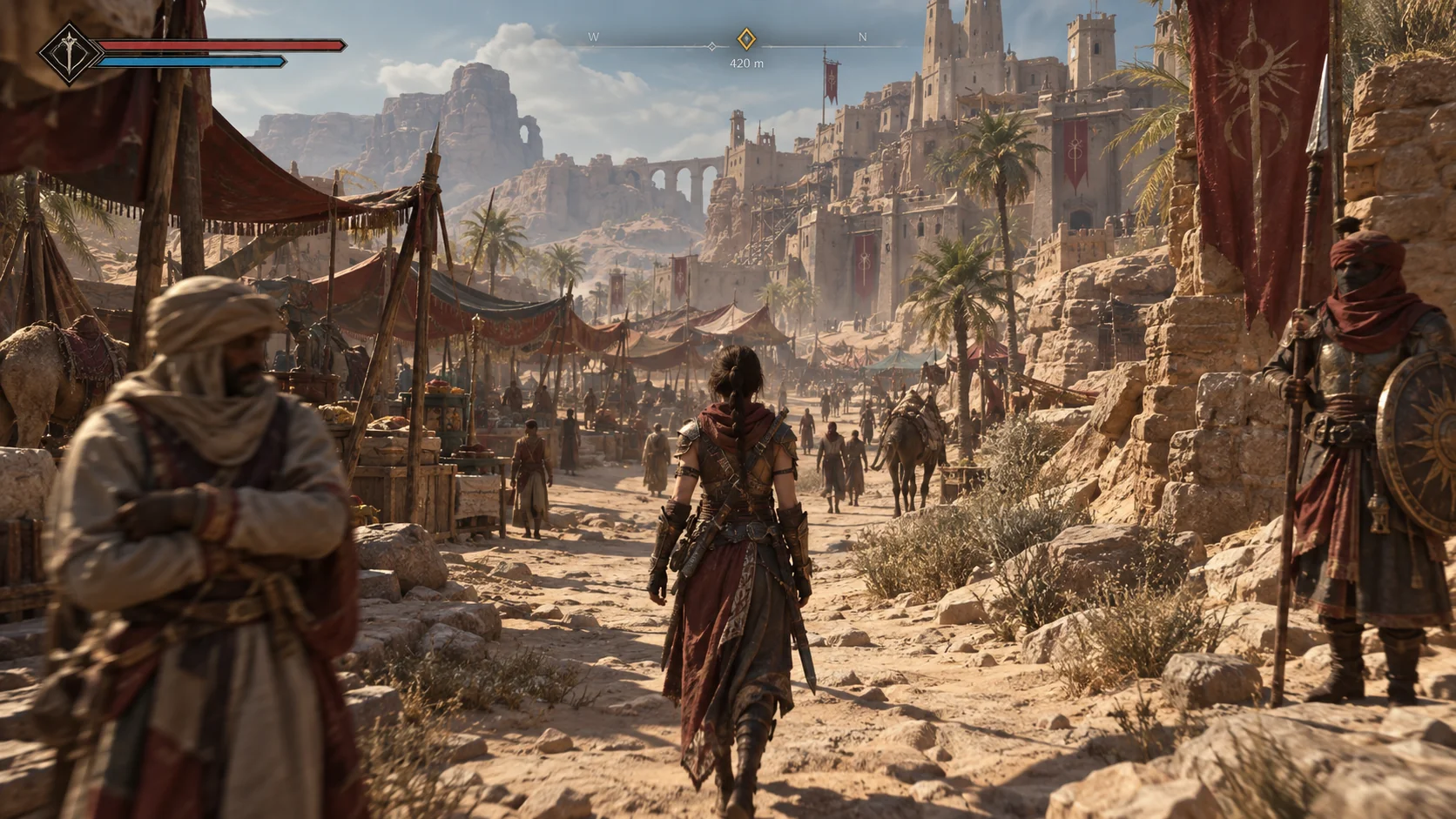
Find the final fight in my Sands of Orra recording. Save it as a slice and tag the recording “Boss fight”.
Connected to your chosen MCP client
Watch your recording folders, create slices automatically, and name or tag them in taperat’s own overlay. Notifications appear in game, on the desktop and in the app. The overlay uses no game hooks or injection.
Generate proxies on demand for smoother seeking. They are stored with your database, while original recordings remain the source.
Create folders and subfolders, move recordings and slices freely, and organise moments with nested tags, collections, favourites and ratings. Original recordings stay untouched. Deleted slices remain archived and recoverable; deletion requires two confirmations.
A free, limited version will also be available for basic needs.
Organising clips takes less power than analysing hours of footage. Here’s a simple guide to choosing your setup.
Add recordings, create sessions, and save your favourite moments as slices.
A comfortable setup: 16 GB RAM, a 6–8 core processor, and an SSD.
Transcription makes speech searchable. Perception Engine uses diarisation and OCR to improve the text and assign speakers automatically.
A comfortable setup: 32 GB RAM and a processor with 8+ cores / 16 threads, plus the library’s storage and playback requirements.
A hard drive, external drive, or network storage is fine for your footage. An SSD is recommended for taperat’s library and cache.
Use OBS, ShadowPlay, or your existing recording software. taperat organises the videos they create.
On a 4-core Windows PC, choose “base” or “small” for transcription. Larger models need more memory and take longer.
Your graphics hardware should support playback of the format you record in, especially for 4K video. Look for hardware decoding for H.264, HEVC, or AV1 in its specifications.
Windows transcription and OCR use the processor, so an NVIDIA card or CUDA is not required. A compatible Vulkan graphics card can help with speaker separation. For the desktop app, use a 1080p display or higher; 1440p gives you more room.
You’ll need it to download speech and analysis models initially; the largest speech model is about 3.1 GB. Once downloaded, transcription and OCR run locally.
For cloud-assisted analysis through MCP Bridge, you’ll also need a compatible MCP client and an internet connection. The cloud model runs with that provider; data you choose to share is handled by them.
These guidelines describe hardware needs. Actual resource use depends on your recordings and the analysis models you choose.